> For the complete documentation index, see [llms.txt](https://docs.klai.studio/llms.txt). Markdown versions of documentation pages are available by appending `.md` to page URLs; this page is available as [Markdown](https://docs.klai.studio/reference/apis-and-services/integrations/create-an-s3-bucket-on-aws.md).
# Create an S3 Bucket on AWS
## Description
This is an example of how a bucket can be set up to allow specific domain(s) to upload, download, and delete objects to/from the bucket.
## Instructions
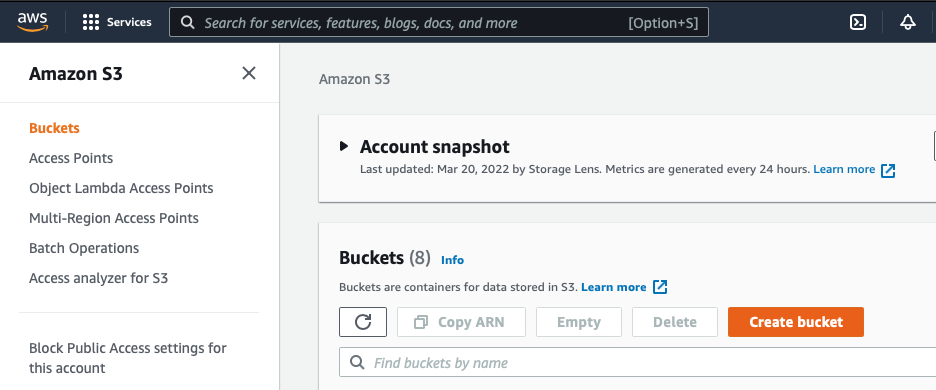
* Go to the AWS Console and choose `S3`
* Type s3 on the search bar and the service will show up

* Click on `Create Bucket`
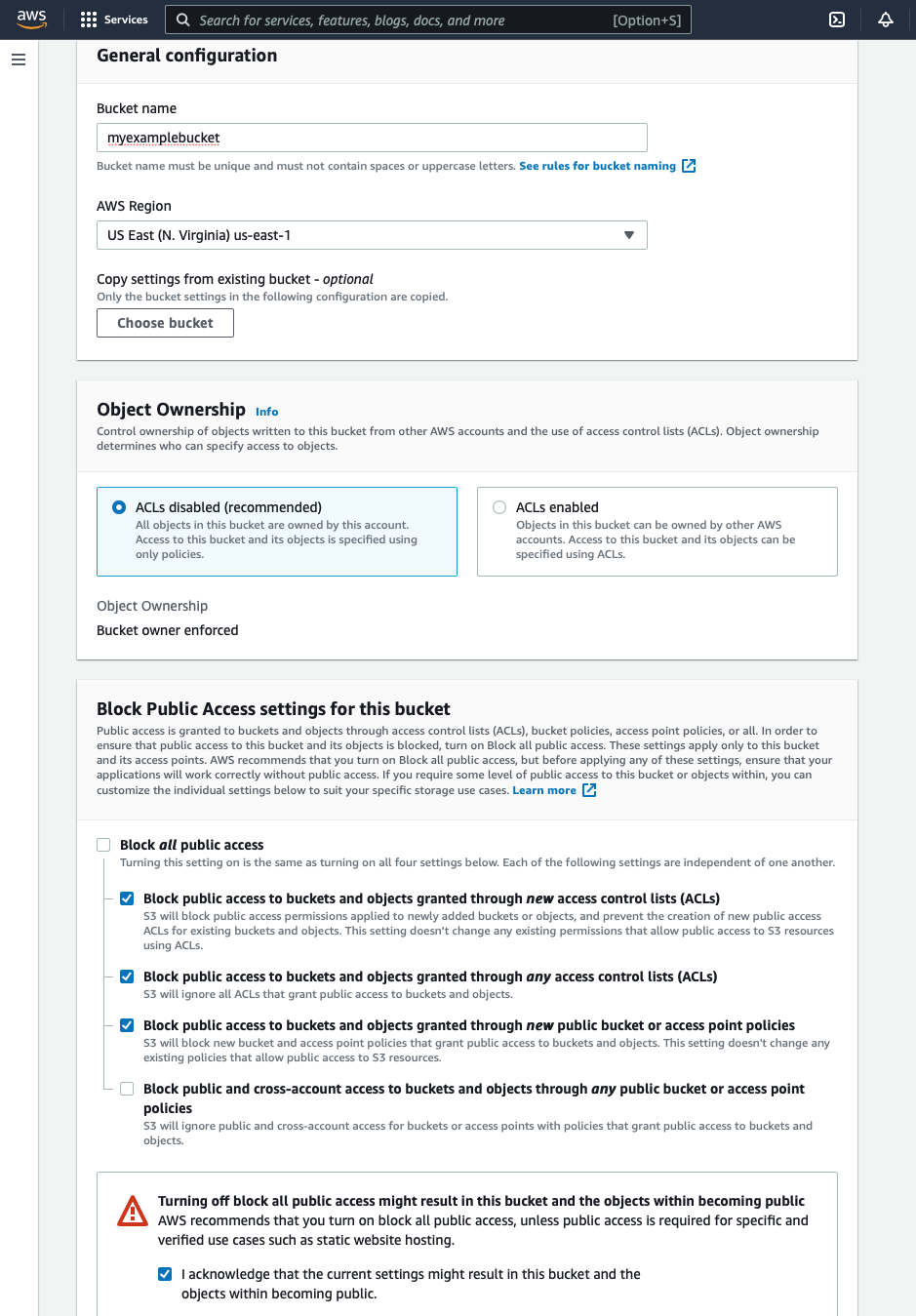
* Choose a unique bucket name (AWS will do the validation, and that involves ALL buckets from a given region, not only buckets associated to your account)
* Select an `AWS Region`
* On `Block Public Access settings for this bucket` leave unchecked only the box for **Block public and cross-account access to buckets and objects through any public bucket or access point policies**
* Click on `Create bucket`
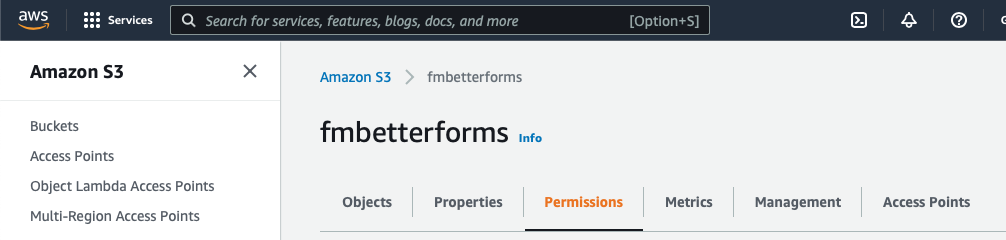
Once the bucket is created, select the newly created bucket and go to the `Permission` tab.
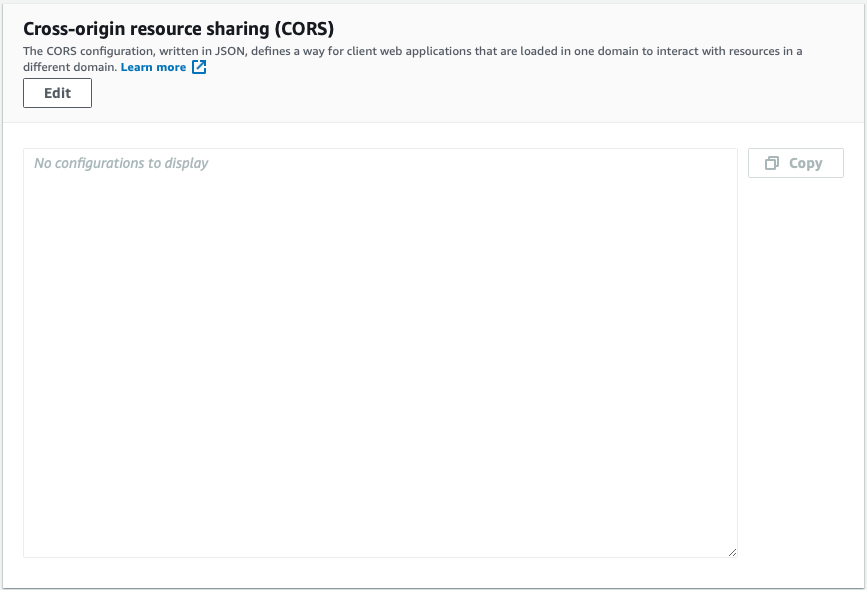
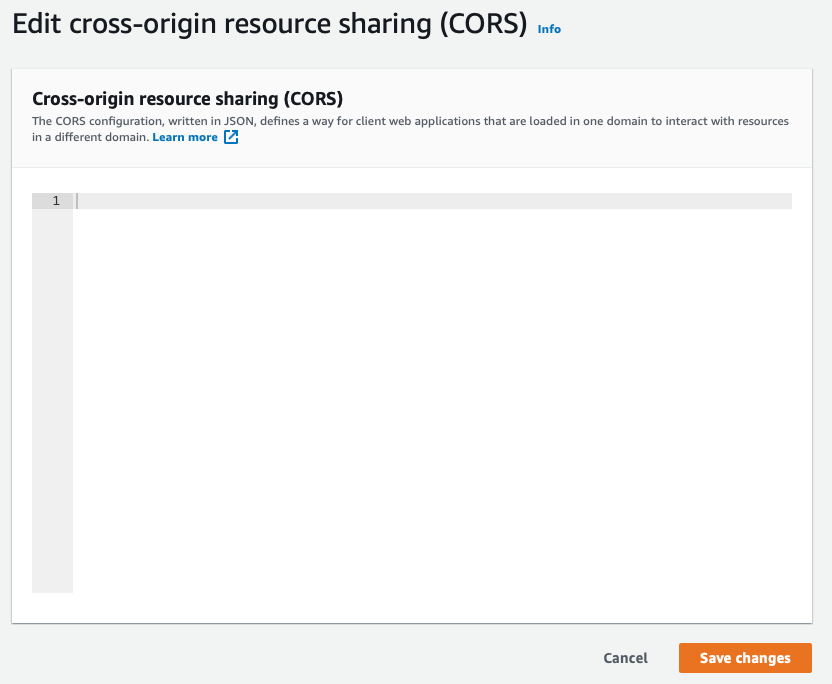
* Scroll to the section `Cross-origin resource sharing (CORS)`
* Click on `Edit`, shown on image above, and you will be redirected to the following page.
* Use a CORS configuration written in JSON, like the example below. More examples on CORS can be found on [AWS docs](https://docs.aws.amazon.com/AmazonS3/latest/userguide/ManageCorsUsing.html)
```bash
[
{
"AllowedHeaders": [
"*"
],
"AllowedMethods": [
"PUT",
"POST",
"DELETE",
"GET"
],
"AllowedOrigins": [
"https://my.example.com",
"https://*.examples.com"
],
"ExposeHeaders": [
"x-amz-server-side-encryption",
"x-amz-request-id",
"x-amz-id-2"
],
"MaxAgeSeconds": 3000
}
]
```
> The example above shows an object that allows origins to upload (POST / PUT), download (GET), and delete (DELETE) objects. If one of these actions should not be allowed, remove them from the methods.
## Credentials needed for BetterForms
In order to be able to communicate with the bucket, we need to add the AWS access key and secret access key, it can be either an existing or newly created one.
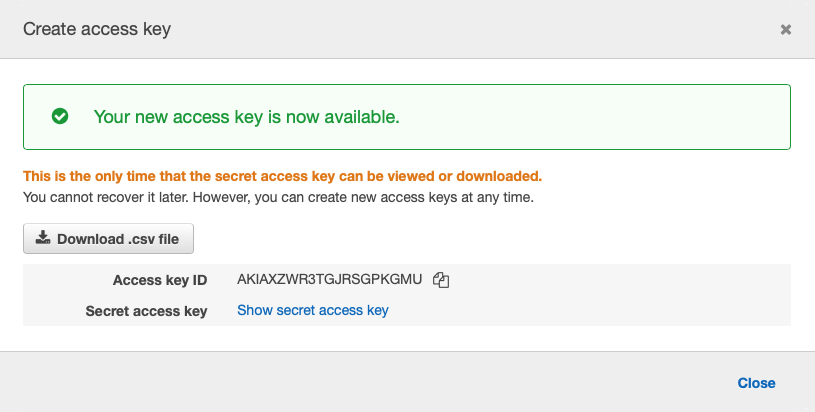
* If a new one needs to be created, click on the account button located on the top right, and select `Security credentials`.

* Under the tab `AWS IAM credentials`, click on `Create Access key`. Download the .csv file with the secret key and save it on your local machine.
Fields that will be needed for BetterForms to create a signed URL include:
* Host (ex. s3.amazonaws.com)
* Region (ex. us-west-1)
* Access Key
* Secret Access Key
* Bucket Name